Zones
The three zone types, editing their shapes, visual windows (radius / shape / colour), and attaching vertices to players.
Watch the walkthrough
Videos are narrated in English. Written guides are available alongside them. The video may show older controls; follow the steps and screenshots below for the current interface.
What Zones Are
Zones are translucent coloured overlays on the pitch — the classic coaching-board shapes for defensive blocks, pressing zones, passing lanes, or "danger areas". A zone is a full item: it can move, be attached to a player, change shape over time, and have its vertices follow players.
The Three Zone Types
| Type | What it is | Best for |
|---|---|---|
| Polygon Zone | A free-drawn polygon with editable vertices | Fixed tactical areas |
| Circle Zone | A circle sized by a radius slider | Zones around a spot or player |
| Dynamic Zone | A polygon whose vertices can each be attached to a player or the ball | Pressing traps, offside lines, shape that moves with the team |
Creating a Zone
- Click Add Item and pick Polygon Zone, Circle Zone, or Dynamic Zone.
- Click the pitch — the zone appears (a square polygon / circle / pentagon by default).
- Click the zone to select it (the centre cross and a small blue selection ring appear at the zone's centre).
The Zone's Track
Each zone (Zone 01…) has:
- Movement — position keys. A zone moves by its centre, so the whole shape glides together.
- Attachment — attach the whole zone to a player or the ball; it follows them during playback.
- Visual — appearance windows (see below).
A zone's keys belong to the branch you have open — each branch has its own timeline, so a zone
can sit and change differently in different branches. Switching branches commits your work into the branch you
are leaving first. On a child branch the zone's first key at 00:00 is locked (🔒) —
inherited from where the parent branch ended.
The Centre Cross — a Zone's Fixed Anchor
Every zone has a small + marker at its centre. This cross is the zone's anchor — the spot where the zone "is" on the pitch. Think of it like the pin on a map:
- The cross sits at the zone's stored centre, set where you placed the zone.
- It only appears while the zone is selected — click the zone to see it, click away to hide it.
- The selection ring (small blue circle) wraps the cross, not the shape. Zones with vertices pulled far to one side still show a small ring at the centre.
- Editing the shape never moves the cross — drag vertices anywhere and the centre stays put; vertices are drawn relative to it.
- Moving the zone moves everything — when you drag the zone (or it follows a player during playback), the cross, the vertices and the whole shape travel together, and any edited shape is preserved exactly.
Default Visual Key
When you place a new zone it starts with a visual key at 0:00 snapshotting how it was placed (shape, radius, colour, opacity). This works like the default graphic key on players and balls: the zone's Visual lane always has a key to start from, so editing a window or morphing between looks behaves predictably from the first second.
Editing a Zone's Shape
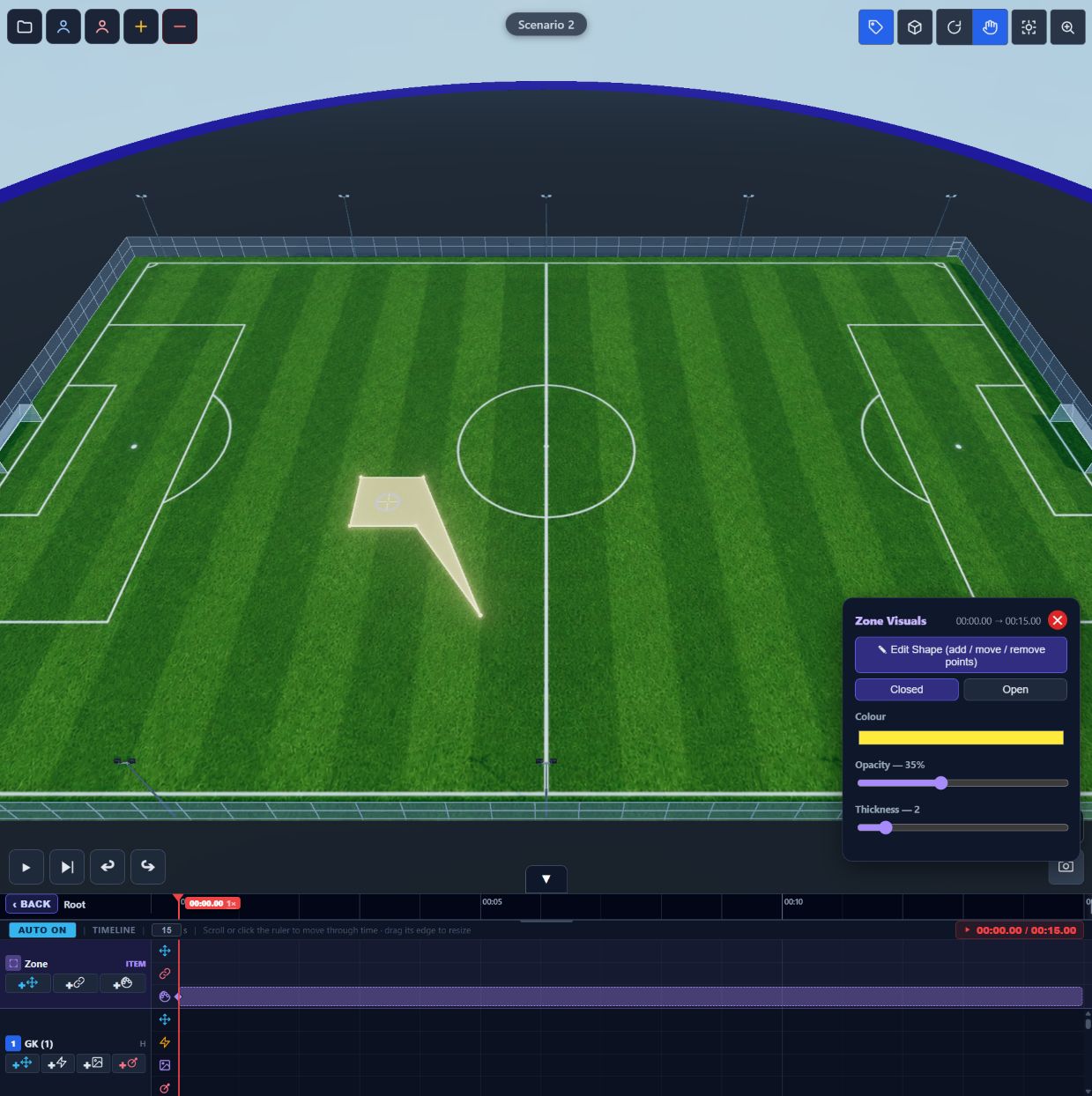
- Select the zone, then open its Zone Visuals editor (click the visual window bar on its track — or press Key Visual first to create one).
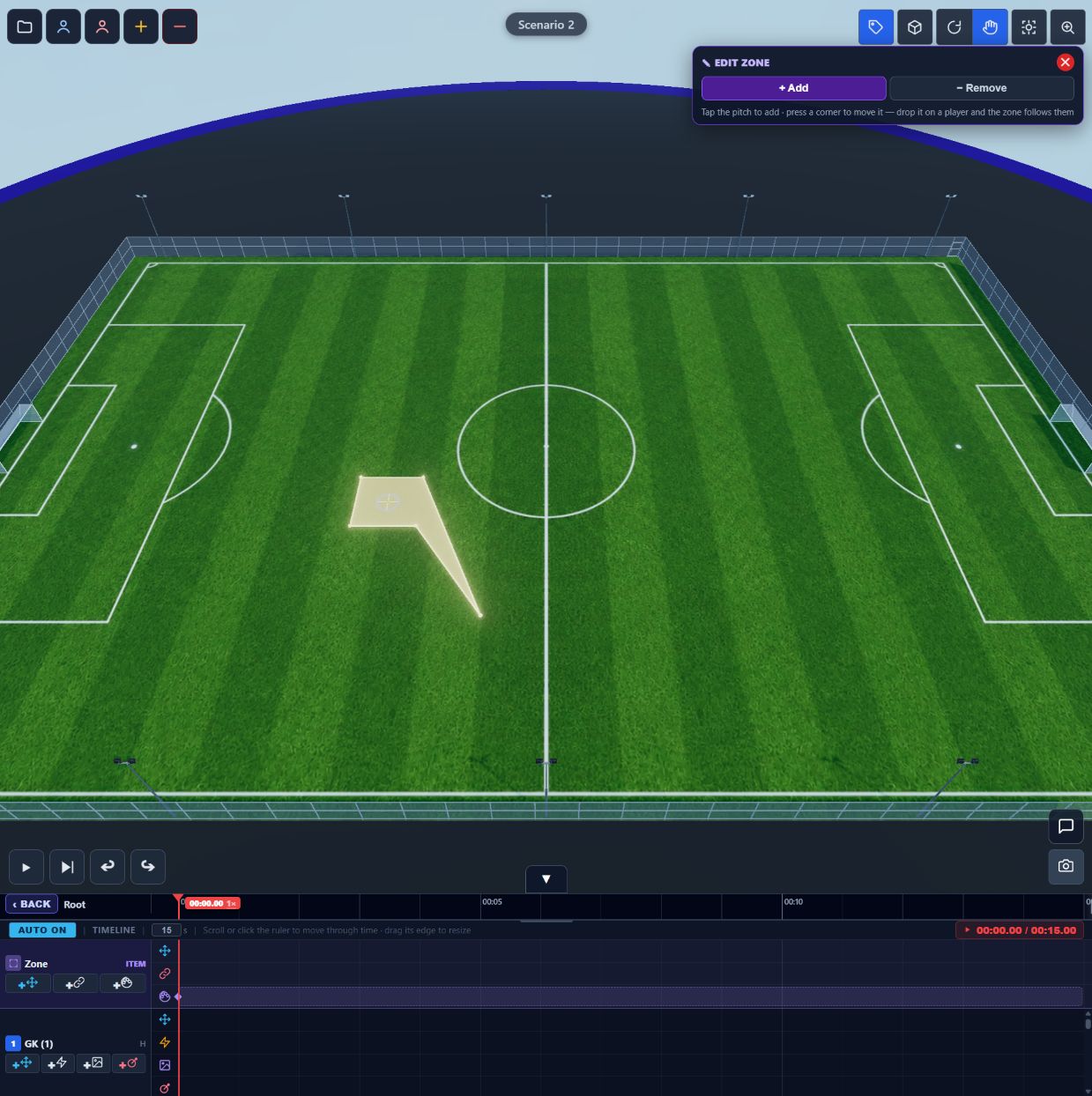
- Click Edit Shape — the editor closes and an EDIT ZONE panel appears:
- + Add — click on the pitch to insert a new vertex (added on the nearest edge).
- Move — press and drag a corner directly to reshape the polygon; there is no separate Move button.
- − Remove — click a vertex dot to delete it (a zone keeps at least 2 vertices).
- Press the red ✕ on the EDIT ZONE panel to finish — the Zone Visuals editor reopens showing your changes.
Tip: Switch to the 2D view before editing a shape — top-down is much easier for precise vertex work.
Visual Windows (How a Zone Changes Over Time)
A zone's appearance — radius, polygon points, colour, opacity, thickness and vertex attachments — is stored in visual keyframes, shown as window bars on the zone's Visual lane:
- With the zone selected, move the playhead to the second where the change should start.
- Click Key Visual — a visual key (and a window bar) appears; the editor opens.
- Adjust radius (circle zones), colour, opacity, thickness, or Closed/Open (filled vs outline only).
- Later, move the playhead forward and Key Visual again with a different look — the zone morphs between the two windows as playback passes the key.
- Click a window bar at any time to re-open and edit that window's snapshot.
Attaching Vertices (Dynamic Zones)
A dynamic zone's vertices can be glued to players or the ball. As those objects move during playback, the zone deforms to follow them — the classic "pressing trap" that tracks the nearest defender.
- Create a Dynamic Zone and open its Zone Visuals editor.
- You'll see one row per vertex: V1, V2, V3…, each with a Link button.
- Click Link next to a vertex, then click a player (or the ball) on the pitch.
- While linking, a message appears at the top of the viewport: "Click a player or the ball to attach this point" — press Esc to cancel.
- The row now shows who that vertex follows (e.g. → Player 3 (H)). Use the small ✕ to unlink.
- Play — the attached vertices ride along with their players, and the zone reshapes live.
Tip: Link some vertices and leave others unlinked to create a semi-fixed zone — e.g. an offside line anchored to the last defender on one end and fixed to the touchline on the other.
Attaching the Whole Zone
You can also attach the entire zone to a player or the ball (like the ball's attachment):
- Select the zone, click Key Attachment on its track.
- Click the player or ball to follow — the zone's centre stays glued to it from that second.
- Add a Detach key later to free it.
Copy, Colour & Remove
- Copy / Paste — copy a zone's full configuration onto another zone.
- Colour / Opacity / Thickness — edit in the Zone Visuals editor (and per visual window).
- Remove — select the zone and use the remove option; its track disappears.
Read on: Undo & Redo → Saving, Loading & Sharing.